
Applies to:
- CI People Directory - Enterprise Clients
- CI People Directory - Marketing Subscribers
- CI People Directory - Research Subscribers
Issue/Functionality Sought:
- What are role-specific filters?
- How can I filter my search results based on a specific role?
- How can I make a role-specific search?
- How can I apply additional filters after choosing a specific role in the CI People Directory?
Tactical Rundown:
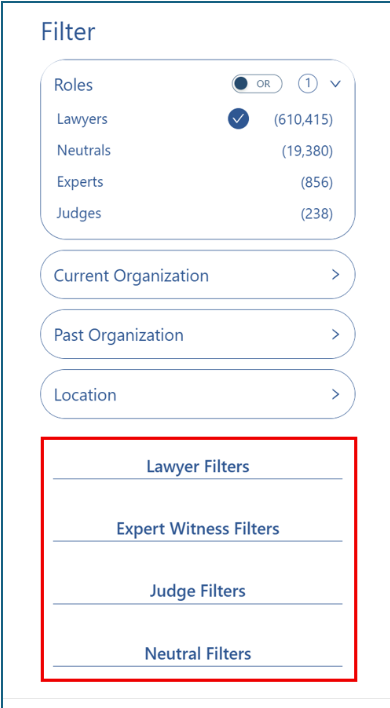
On the left-hand search panel, below the general filters, are the role-specific filters. These let you narrow your search by role (lawyer, expert, judge, or neutral), with each filter set tailored to the details most relevant to that role.
Step 1: Locate Role-Specific Filters
Role-specific filters appear below the CI General Filters on the left-hand side of the screen.
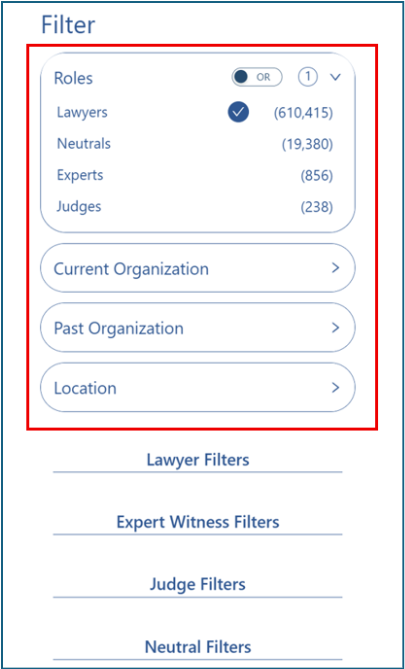
CI General Filters include Role, Current Organization, Past Organization, and Location, and apply across all roles in the directory.
General Filters:
Role-Specific Filters:
Step 2: Expand Filters
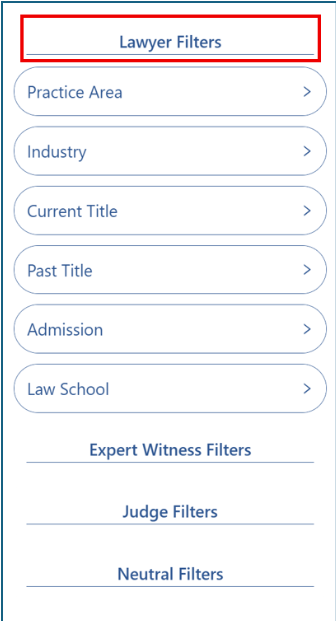
Expand the filters by clicking on the role you are interested in.
You will now see the filters available for that role.
Step 3: Open Specific Filters
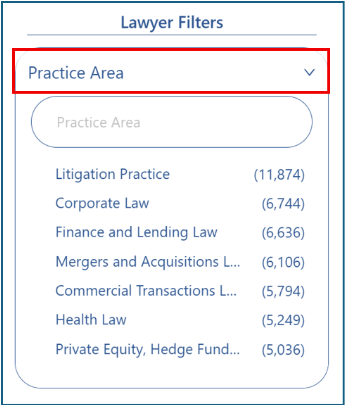
Open the filter(s) you want to use.
Step 4: Two Ways to Narrow Your Filter
You can identify your desired filter in two ways:
Type into the search bar to look for a specific filter type.
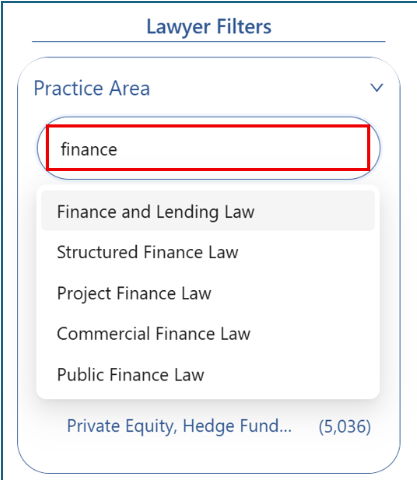
Or: Click one of the prepopulated examples listed beneath the search bar.
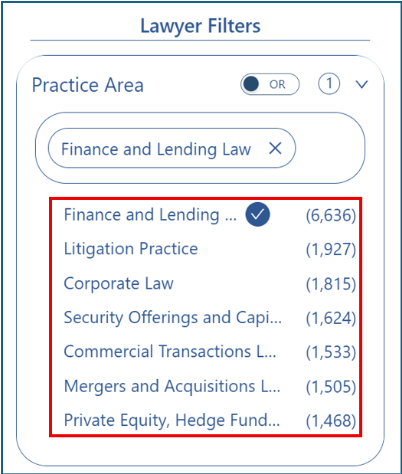
Your search results will automatically update to match the filters you apply.
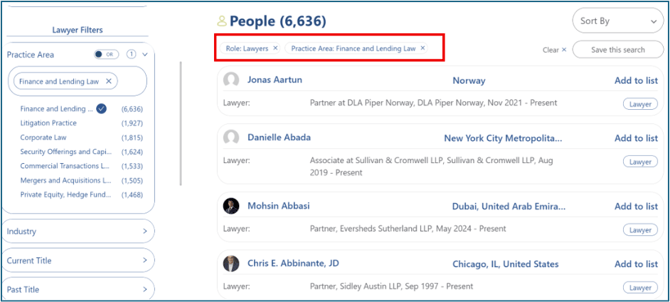
Step 5: Filter by One or More Criteria
You can filter by more than one option within the same category by selecting multiple filters.
- To do this, click on each filter option you want to apply. Each selected option will remain active as you add additional filters.
- For example, within Practice Areas, click Finance and Lending Law, then click Litigation Practice to return profiles that match both criteria.
- By default, multiple filters are combined using AND, meaning profiles must meet all selected criteria.
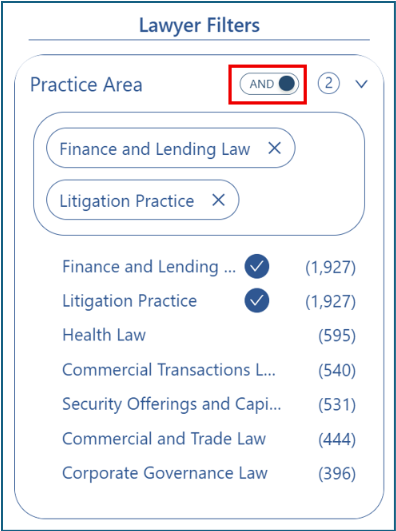
If you want profiles that match any of the selected options instead of all of them, switch the AND/OR toggle to OR.
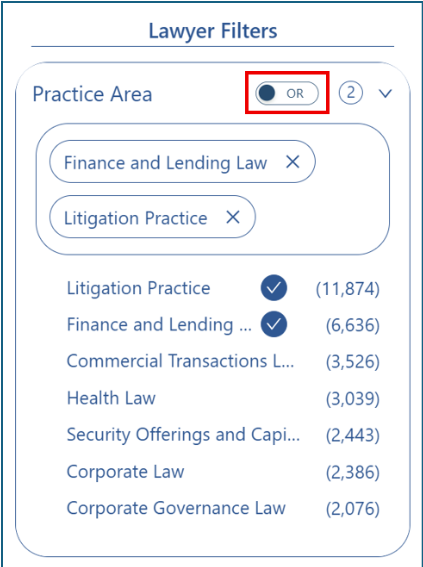
You should now see your updated search results reflecting the filters you selected.
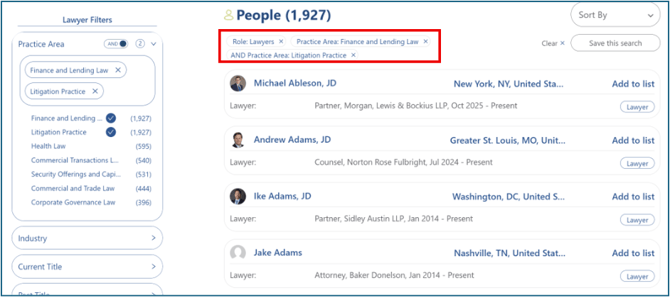
Step 6: Combine Multiple Filters
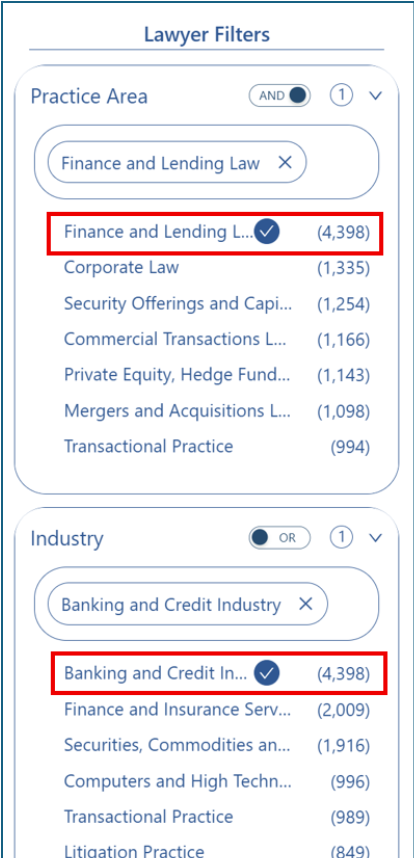
You can refine your search further by applying filters from different categories at the same time.
- To combine filters, select one or more filters in one category, then scroll to another category and select additional filters. All selected filters will remain active as you move between categories.
- For example, select Finance and Lending Law under Practice Areas, then select Banking and Credit under Industry to return profiles that match both filters.
- All filters across categories are applied together by default, meaning profiles must meet every selected filter.
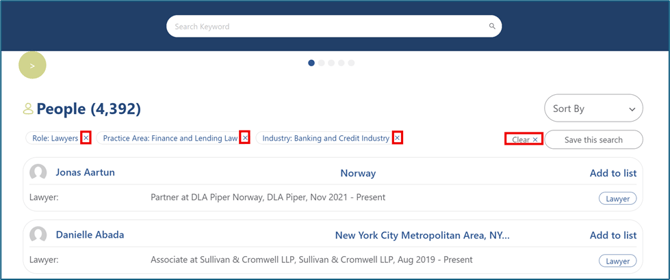
Step 7: Clear Individual or All Filters
To remove a single filter, click the X next to the undesired filter.
To reset your search entirely, click Clear on the right-hand side.
Still Need Help?
If you still have questions or experience issues, our Customer Care team is here to help. Contact us by email (customercare@courtroominsight.com) or phone (415-593-1499 x405) to get connected with a team member within 24 hours.