
Applies to:
- CI People Directory - Enterprise Clients
- CI People Directory - Marketing Subscribers
- CI People Directory - Research Subscribers
Issue/Functionality Sought:
- What are Firm-Reported Documents?
- Where can I view Firm-Reported Documents?
- Where can I upload Firm-Reported Documents?
- Where can I see Documents uploaded by my Firm?
Solution Overview:
If enabled, your firm can upload or attach documents directly to a person’s profile. Depending on your firm’s configuration, these may include file uploads, URLs, or links to internal systems. These materials appear in a profile’s Documents section and are only visible to users within your firm. This feature provides a convenient way to store and track any additional research, notes, or supporting information your team has gathered about that individual. By the end of this article, you will be able to:
- Locate firm-reported documents
- View firm-reported documents
Tactical Rundown:
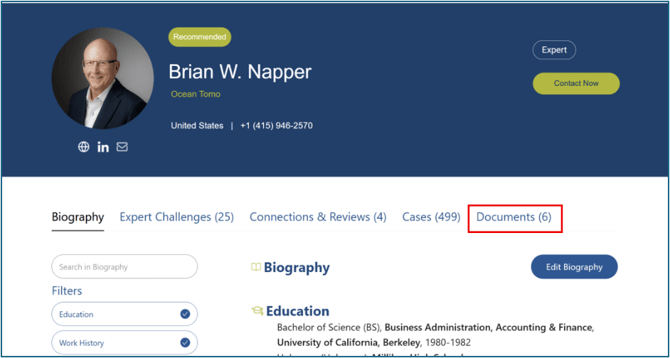
Step 1: Navigate to the Documents Tab
To find documents your firm has uploaded, go to the Documents tab within the person’s profile.
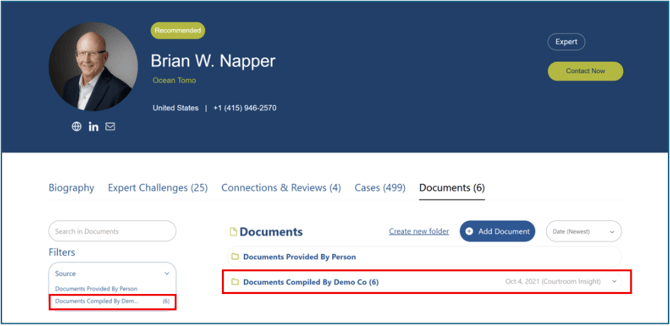
Step 2: Locate Your Firm’s Folder
Look for the folder labeled “Documents Compiled by [Your Firm’s Name].”
If your firm has added any documents, you will see the number of files listed in parentheses.
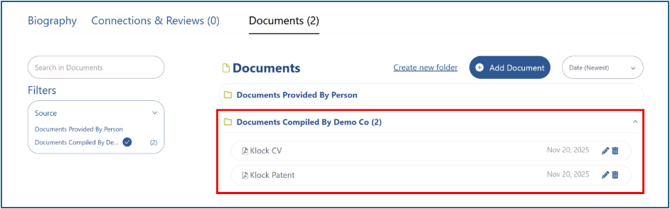
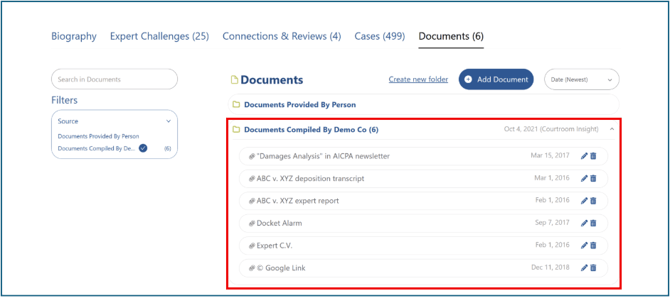
Step 3: Open the Folder
Click on the folder to open it and view all documents your firm has attached.
To see instructions on uploading, click the “How do I upload a document to the CI People Directory?” link below.
Still Need Help?
If you still have questions or experience issues, our Customer Care team is here to help. Contact us by email (customercare@courtroominsight.com) or phone (415-593-1499 x405) to get connected with a team member within 24 hours.