
Applies to:
- CI People Directory - Enterprise Clients
- CI People Directory - Marketing Subscribers
- CI People Directory - Research Subscribers
Issue/Functionality Sought:
- How can I refine my search criteria in the CI People Directory?
- How do I filter my search by people with prior experience with my company in the CI People Directory?
- Where can I view profiles of active and inactive professionals in the CI People Directory?
Solution Overview:
Search Modifications, when enabled, let you refine results to show professionals with firm experience, firm reviews, and other specific criteria. By the end of this article, you will learn how to:
- Locate and open Search Modifications within the CI People Directory
- Filter results to show professionals with prior experience with your firm
- Limit results to profiles reviewed by users at your firm
- Include or exclude inactive profiles such as retired or deceased individuals
- Apply minimum rating and minimum review count thresholds
- Remove individual Search Modifications or clear all filters at once
Tactical Rundown:
Step 1: Locate “Search Modifications”
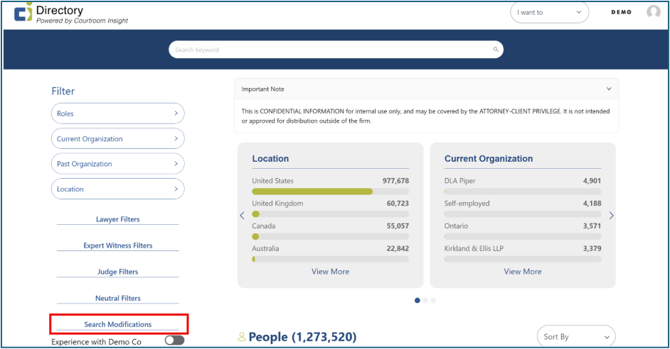
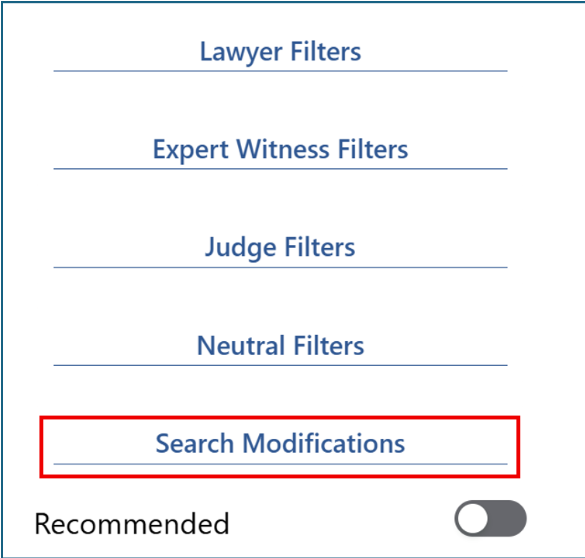
Scroll down on the left side of the screen to view the available filters, where Search Modifications are located.
Step 2: Open Search Modifications
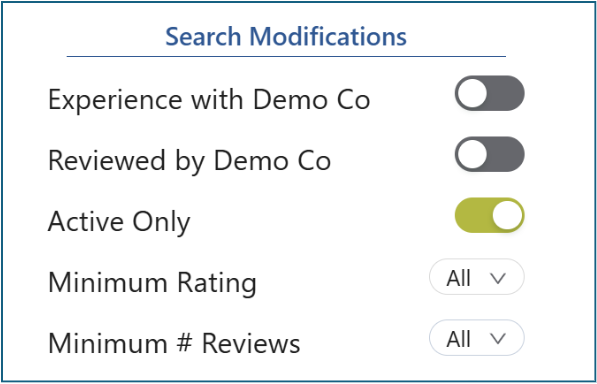
Click Search Modifications to expand the options. There are 5 different options, as detailed below.
Step 3: Apply Desired Search Modifications
Experience with [Your Firm]: When turned on, Experience with [Your Firm] will only show profiles of individuals who have prior experience with your firm, such as thumbs, connections, or reviews.

Reviewed by [Your Firm]: Limits results to professionals who have been reviewed by someone at your firm.

Active Only: Turning Active Only off will include profiles marked as inactive, such as retired or deceased individuals

Minimum Rating: You can filter for profiles with a minimum rating from 1–5. This rating reflects the average number of stars given by users at your firm.

Minimum # Reviews: You can also filter to only show profiles with a minimum of 1, 5, or 10 reviews written by your firm’s users.

Step 4: Remove Search Modifications
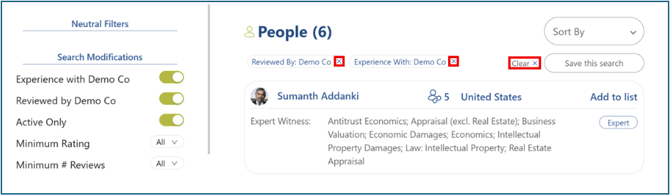
Search Modifications can be removed like any other filter by clicking the X next to the filter, or by selecting Clear to remove all filters.
Still Need Help?
If you still have questions or experience issues, our Customer Care team is here to help. Contact us by email (customercare@courtroominsight.com) or phone (415-593-1499 x405) to get connected with a team member within 24 hours.