
Last Updated: 1/28/26
Applies to:
- CI People Directory – Enterprise Clients
- CI People Directory – Marketing Subscribers
- CI People Directory – Research Subscribers
Issue/Functionality Sought:
- How do CI’s general search filters work, and how can you use them effectively?
- How can you refine large result sets (such as matters, awards, analytics, or people) using CI’s general filters?
- How do role-specific filters (such as Lawyers, Experts, Judges, or Neutrals) interact with general filters?
- How can you combine, adjust, and clear filters to ensure your search results stay aligned with your current research goals?
Solution Overview:
This article explains:
- Where general filters can be found
- How CI’s general search filters operate
- How to leverage general filters to narrow or expand multi-category search results
Below is a comprehensive walkthrough of how CI’s general search page filters.
Tactical Rundown:
Step 1: Navigate to the Filters Panel
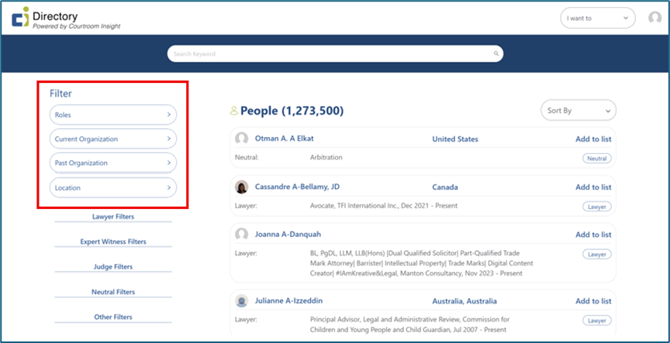
The general filter panel can be found on the left side of the search page. These filters apply to all result types unless a filter is specific to a particular role.
Step 2: Select a Filter Category
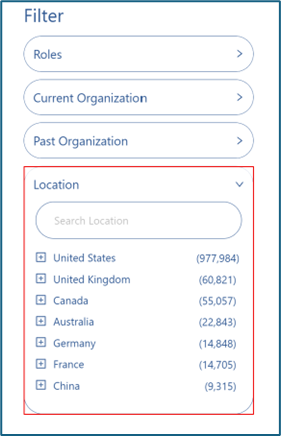
The general search filters include 4 categories:
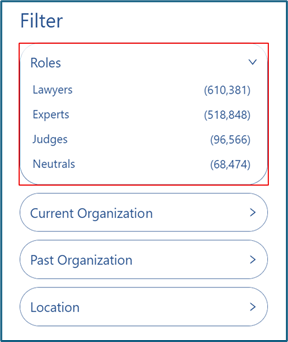
- Roles: Which covers Lawyers, Experts, Judges, and Neutrals.
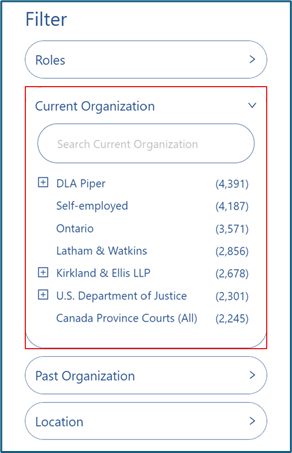
- Current Organization: Displays the firm or organization where the individual currently works. Subsidiaries and acquired entities automatically roll up under their parent organization.
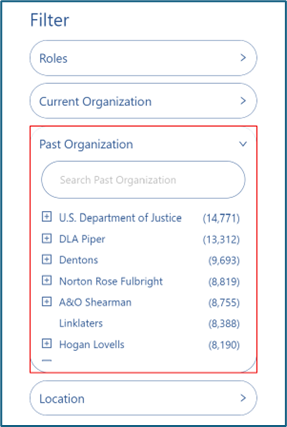
- Past Organization: List of firms/organizations where people in directory worked.
- Location: Listed in a hierarchical structure: Country > State/Province > City. Selecting a higher-level location automatically includes all lower-level locations within it. For example, choosing “United States” returns every professional located in any U.S. state or city.
Step 3: Applying, Combining, and Resetting Filters
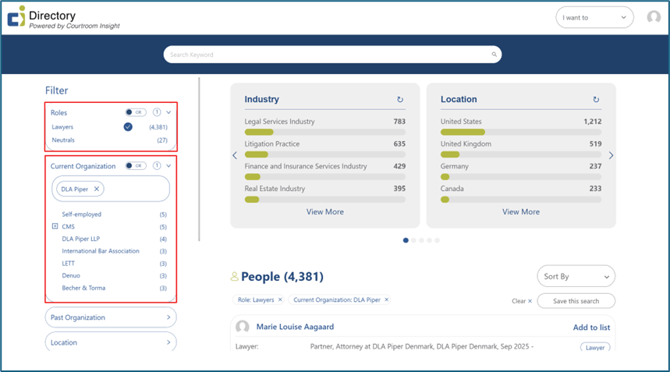
Click any filter value to apply it and results will update automatically. Each filter you add works together with the filters already selected. If your search focus shifts, remember to remove any filters that are no longer applicable. To remove a singular filter, unselect it.
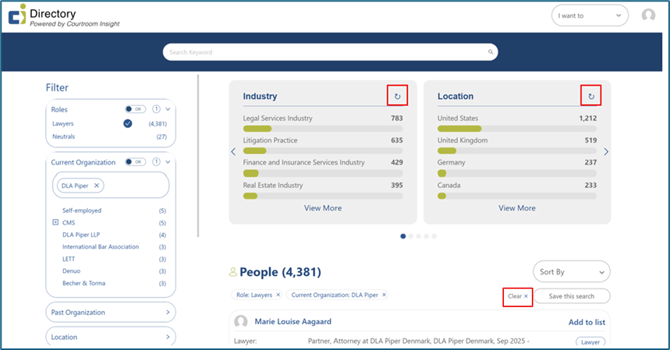
To remove all filters, click “Clear” or “Reset This Chart.
Step 4: Leverage the “And/ Or” Filter
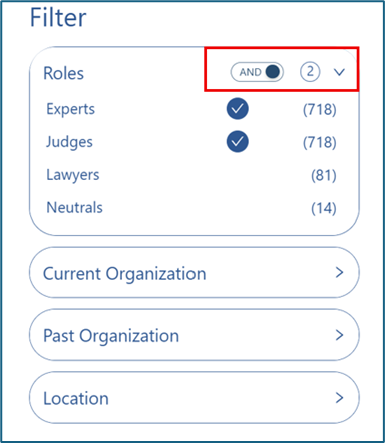
If you want to search for multiple roles at the same time, you can view people who match one or more roles. This toggle will appear directly to the right of “Roles” after a role is selected. For example, if a user selects “Experts” and “Judges”, and sets the toggle to “or,” then the search will show results consisting of either Expert or Judge profiles.
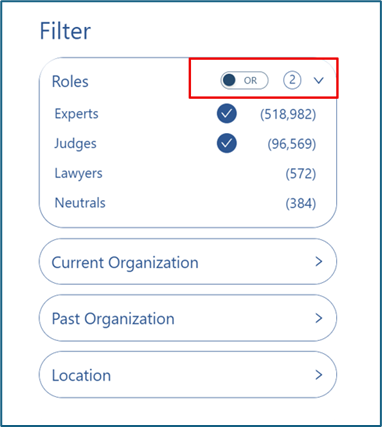
If the toggle is set to “and”, the results will show people who either are currently or have been Experts AND Judges. And/or filters are available in all filters on the CI Directory.
Still Need Help?
If you still have questions or experience issues, our Customer Care team is here to help. Contact us by email (customercare@courtroominsight.com) or phone (415-593-1499 x405) to get connected with a team member within 24 hours.