
Step 1: Select Filters
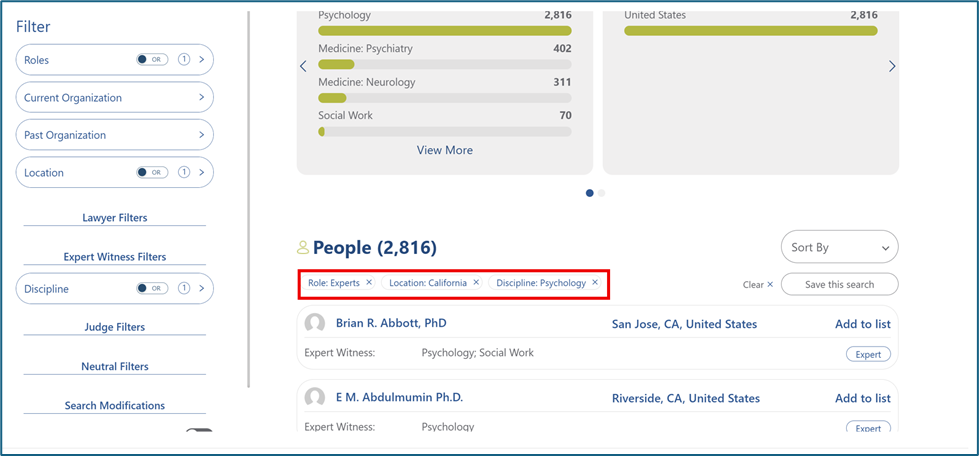
Select the filters you want or type a keyword into the search bar.
Confirm that the search parameters you want to save are correctly displayed.
Step 2: Save Search
Click “Save this search” on the right side of the screen under “Sort By”.

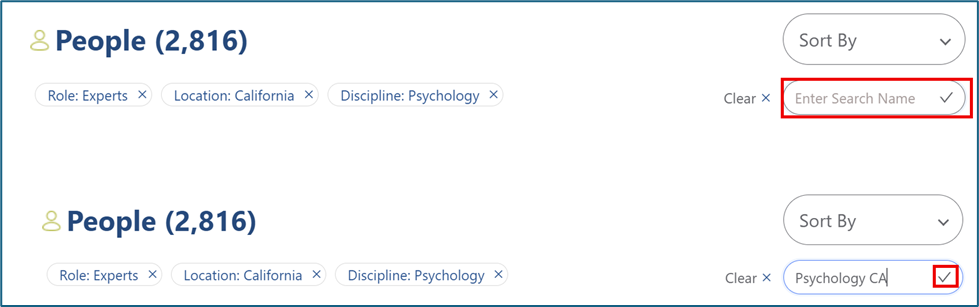
Step 3: Enter Name
Enter a name for your saved search and click the check mark to save it.
Step 4: Select Drop-down
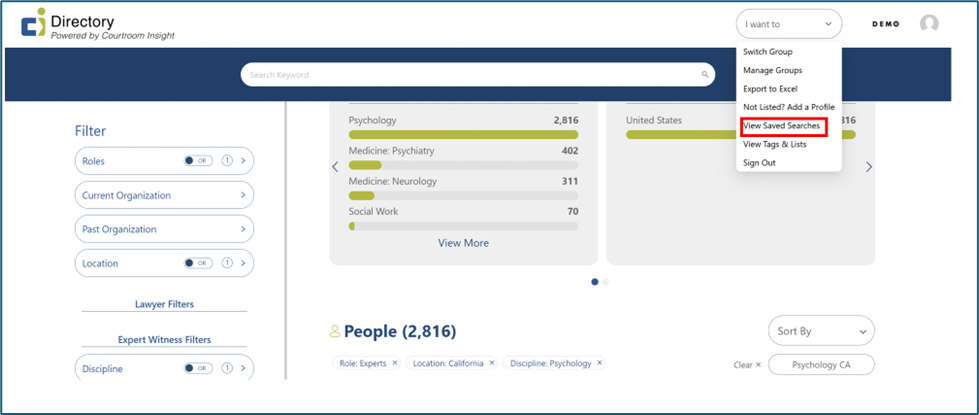
To find your saved searches later, open the “I want to” drop-down menu at the top of the screen and select “View Saved Searches.”
Step 5: View Searches
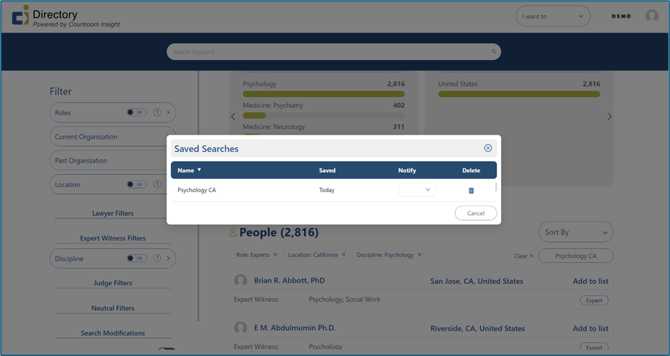
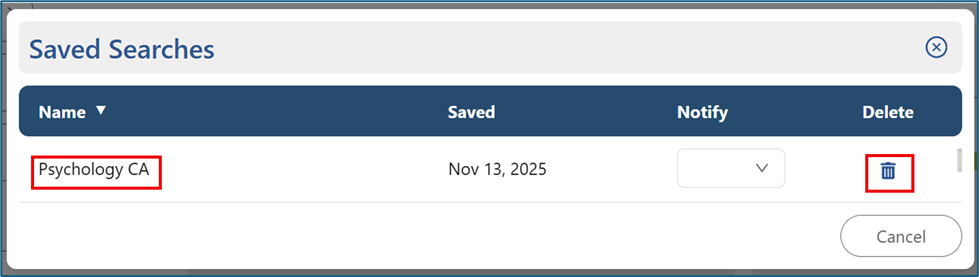
You will see a list of all your saved searches.
Click the name of any saved search to reload its filters and search parameters.
To delete a saved search, click the trash-can icon on the right side.
Step 6: Set Notifications (Optional)
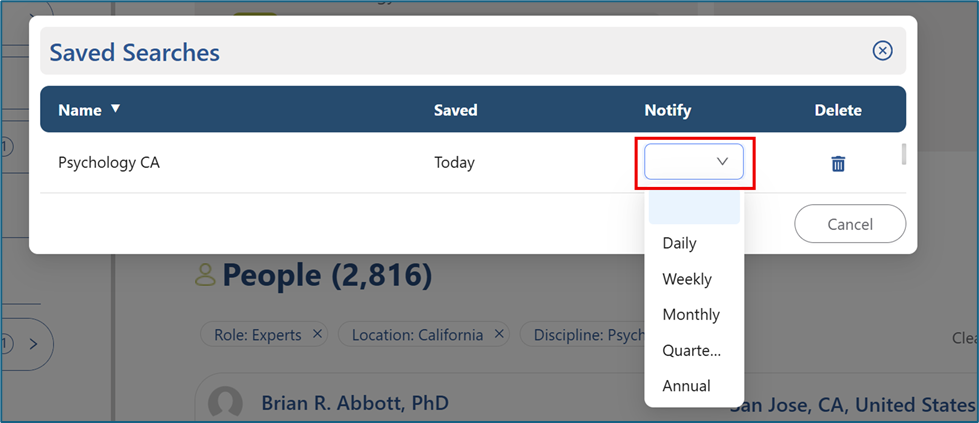
To set up notifications, open the “Notify” drop-down and select how often you want to be notified.
Still Need Help?
If you still have questions or experience issues, our Customer Care team is here to help. Contact us by email (customercare@courtroominsight.com) or phone (415-593-1499 x405) to get connected with a team member within 24 hours.