
Last Updated: 01/29/26
Applies to:
- CI People Directory - Enterprise Clients
- CI People Directory - Marketing Subscribers
- CI People Directory - Research Subscribers
Issue/Functionality Sought:
- How do I export a CI profile to a PDF for offline viewing or sharing?
- How do I download a professional’s profile in a clean, printable format?
- Where do I find the PDF export option on a CI profile page?
- How do I get a PDF version of a profile for internal or client use?
Solution Overview:
CI allows users to quickly generate a PDF version of any attorney, expert, judge, or neutral profile. The PDF export includes all key information displayed on the profile page, making it easy to print, share, or save offline. This article walks you through how to locate the export option and download a PDF directly from the profile view.
Tactical Rundown:
Navigate to Relevant Profile
Go to the profile you would like to export.
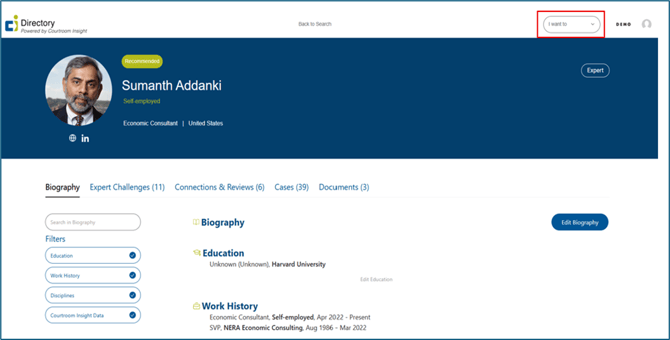
Locate the “I want to” Button
On the top right of the page, find the “I want to”, and click the arrow to show a drop-down menu.
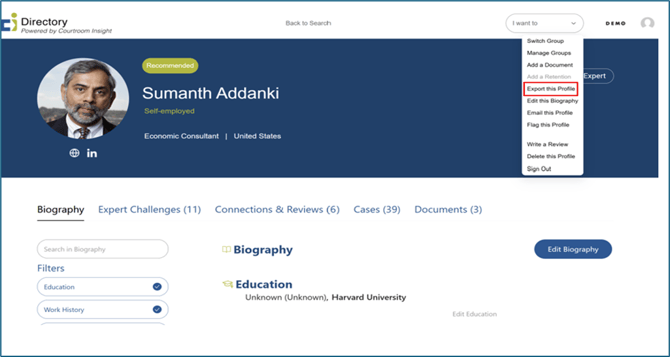
Find and Click the “Export this Profile” Button
The fifth button from the top should be “Export this Profile”, click this button. A new screen titled “Export PDF” will appear.
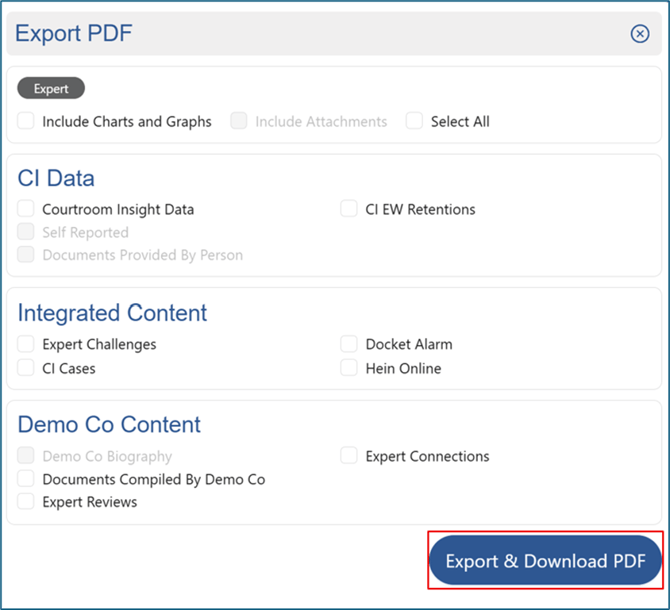
Exporting the Profile to a PDF
Click each check box depending on what information you want to be included in the PDF. However, data fields will vary depending on profile type. Once desired data fields are selected, click “Export & Download PDF”, which will generate your PDF of this profile.
Accessing Your Downloaded PDF
Your PDF of this profile will be found in “Downloads” on the title bar of your computer, and in the downloads folder in your files.

Still Need Help?
If you still have questions or experience issues, our Customer Care team is here to help. Contact us by email (customercare@courtroominsight.com) or phone (415-593-1499 x405) to get connected with a team member within 24 hours.