
Issue/Functionality Sought:
- How do I create and add profiles to Lists in the CI People Directory?
- How can I view Lists in the CI People Directory?
Tactical Rundown:
This article will cover how to create and add profiles to Lists in the CI People Directory. The article will also explain the difference between personal lists and group lists.
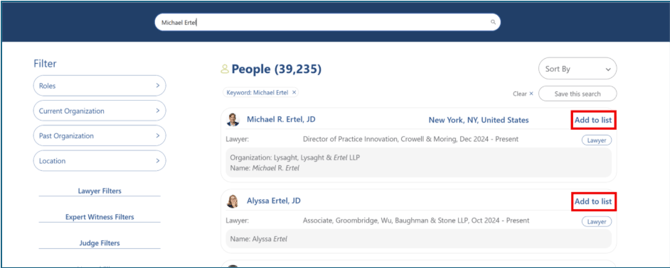
Step 1: Select Add to List
Once you find the profile(s) you want to add to a list, click “Add to list” on the right side of the screen.
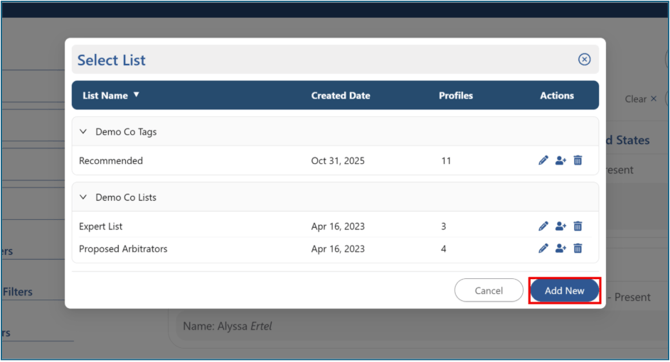
Step 2: Add New
If you are creating a new list, click “Add New” in the popup window.
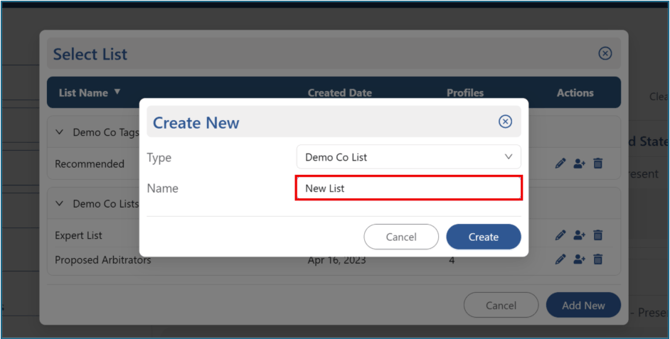
Step 3: Choose Name
Enter a name for the new list.
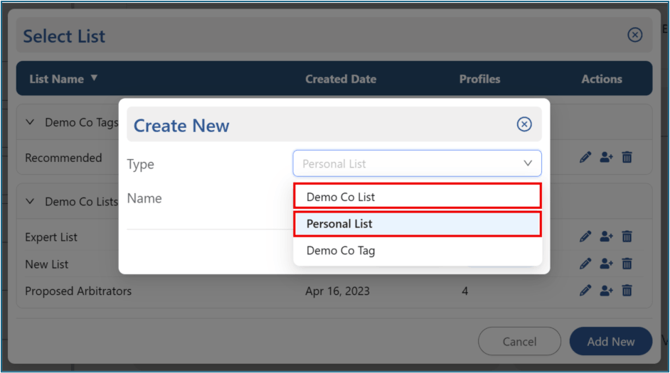
Step 4: Choose Type
Choose the list type:
• Select “[Your Firm’s Name] List” if you want the list to be visible to everyone at your firm.
• Select “Personal List” if you want the list to be visible only to you.
Click “Create”.
You should now see the list you created.
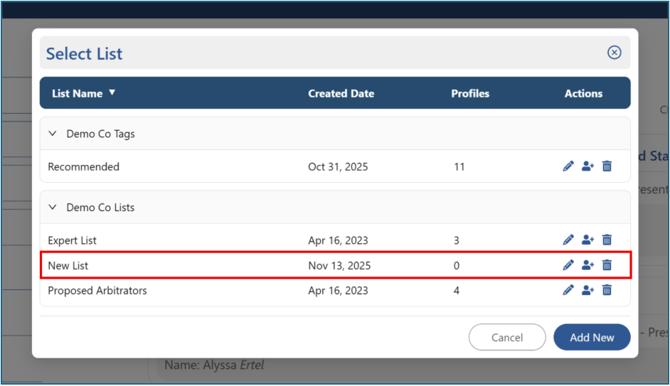
Step 5: Add Profile
To add profiles to your list, click the Add Profile icon (the person with a plus sign).
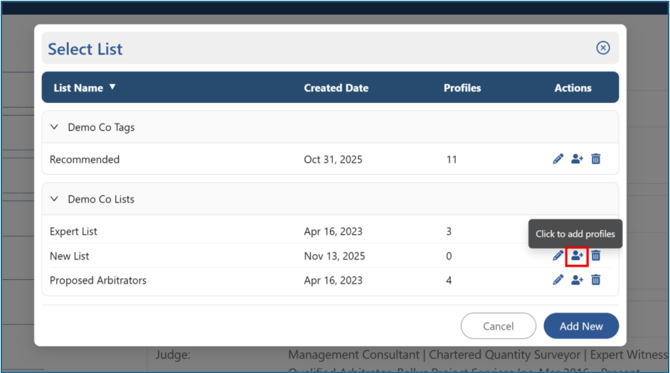
Step 6: Check Box
Check the box to the right of each profile you want to add.
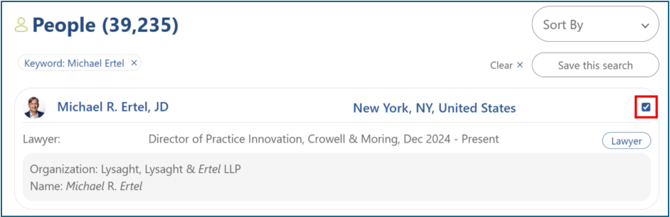
Step 7: Save
After selecting the profile(s), click the green “Save” button at the bottom right of the screen.
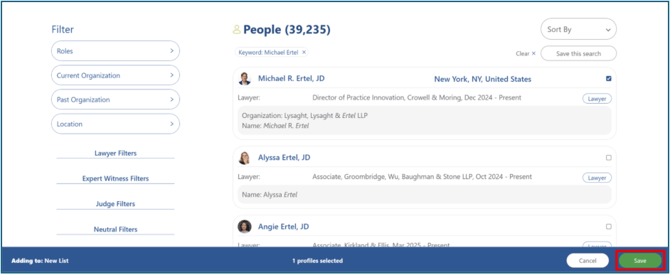
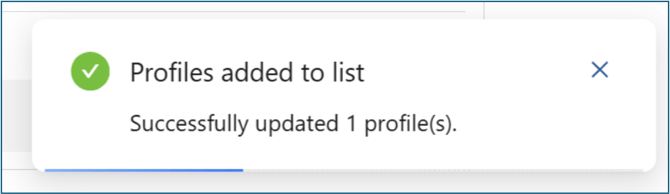
A confirmation message will appear saying “Profiles added to list.”
Step 8: View
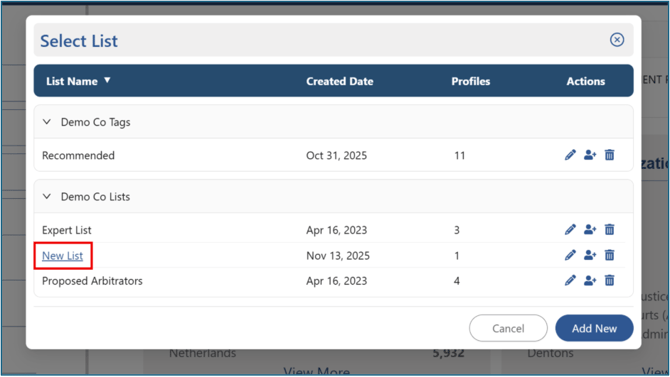
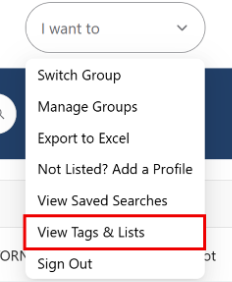
To view your saved list, you can either click “Add to list” again or go to the “I want to” drop-down menu and select “View Tags & Lists. ”
Or:
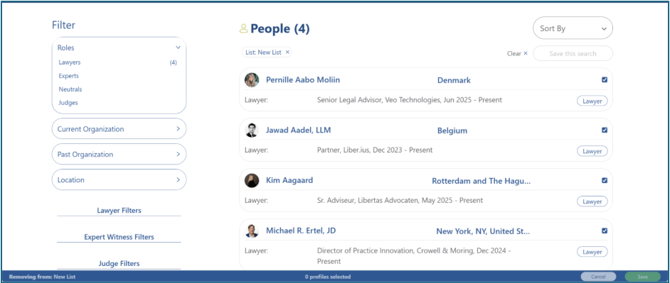
You should now see the profiles you’ve added displayed in your list.
Still Need Help?
If you still have questions or experience issues, our Customer Care team is here to help. Contact us by email (customercare@courtroominsight.com) or phone (415-593-1499 x405) to get connected with a team member within 24 hours.