
Step 1: Navigate to the Relevant Page or Profile
Go to the profile where you want to attach a document.
Step 2: Locate the “Documents” Section
Within the selected profile, find the “Documents” panel, and locate the “Add Document” button. This section contains existing attachments and the option to add new ones.
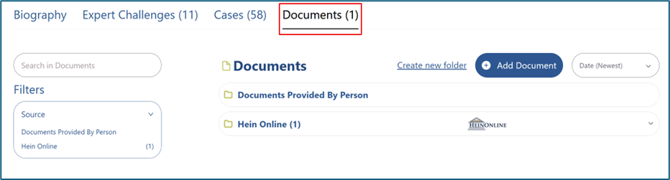
Step 3: Click the “Add Document” Button
Select the “Add Document” button which opens a file selection panel box.

Step 4: Select Your File
Documents can be uploaded in two different ways:
- by uploading a file
- inserting a URL
If uploading via URL, copy and paste the document URL into the “Document URL” box.
If uploading a file, click “Click to Upload” and choose the file you want to upload from your device.
Supported file types include:
| TIFF | |
| TIF | DOC |
| DOCX | XLS |
| XLSX | PPT |
| PPS | PPTX |
| PPSX | PUB |
| NRL |
Once file is selected, click “Open”. Add a title for your document if necessary.
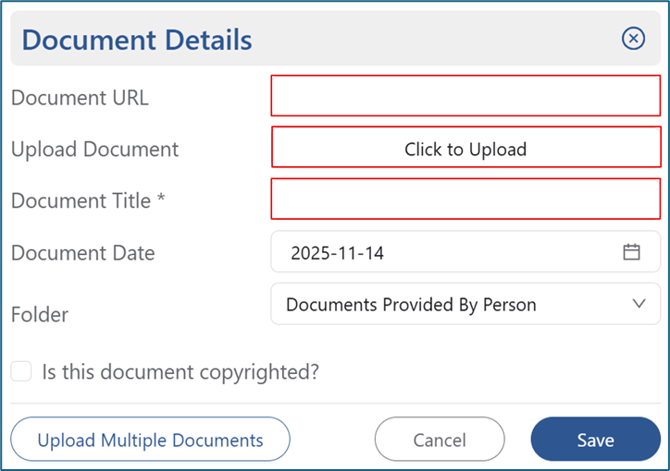
Step 5: Managing Folders
To add a document to a folder while uploading, select the Folder dropdown menu. The default folder is “Documents Provided by Person”, which shows self-reported documents.
You can add a new folder by selecting “Add New Folder.
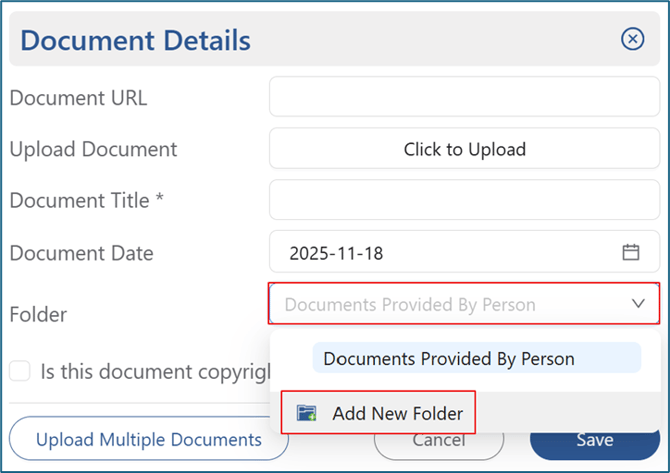
You can also create a new folder from the “Documents” screen, by clicking “Create New Folder” and following the same steps.

Step 6: Save Your Upload
Click “Save” once the document is uploaded. Your document will now appear in the list of attached files.
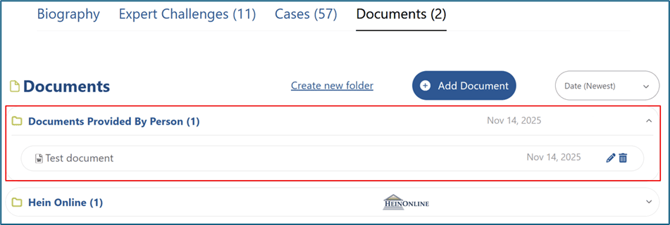
Step 7: Verify the Upload
Ensure the file:
- Appears in the document list
- Displays the correct metadata (if available)
- Opens without issue when clicked
Still Need Help?
If you still have questions or experience issues, our Customer Care team is here to help. Contact us by email (customercare@courtroominsight.com) or phone (415-593-1499 x405) to get connected with a team member within 24 hours.